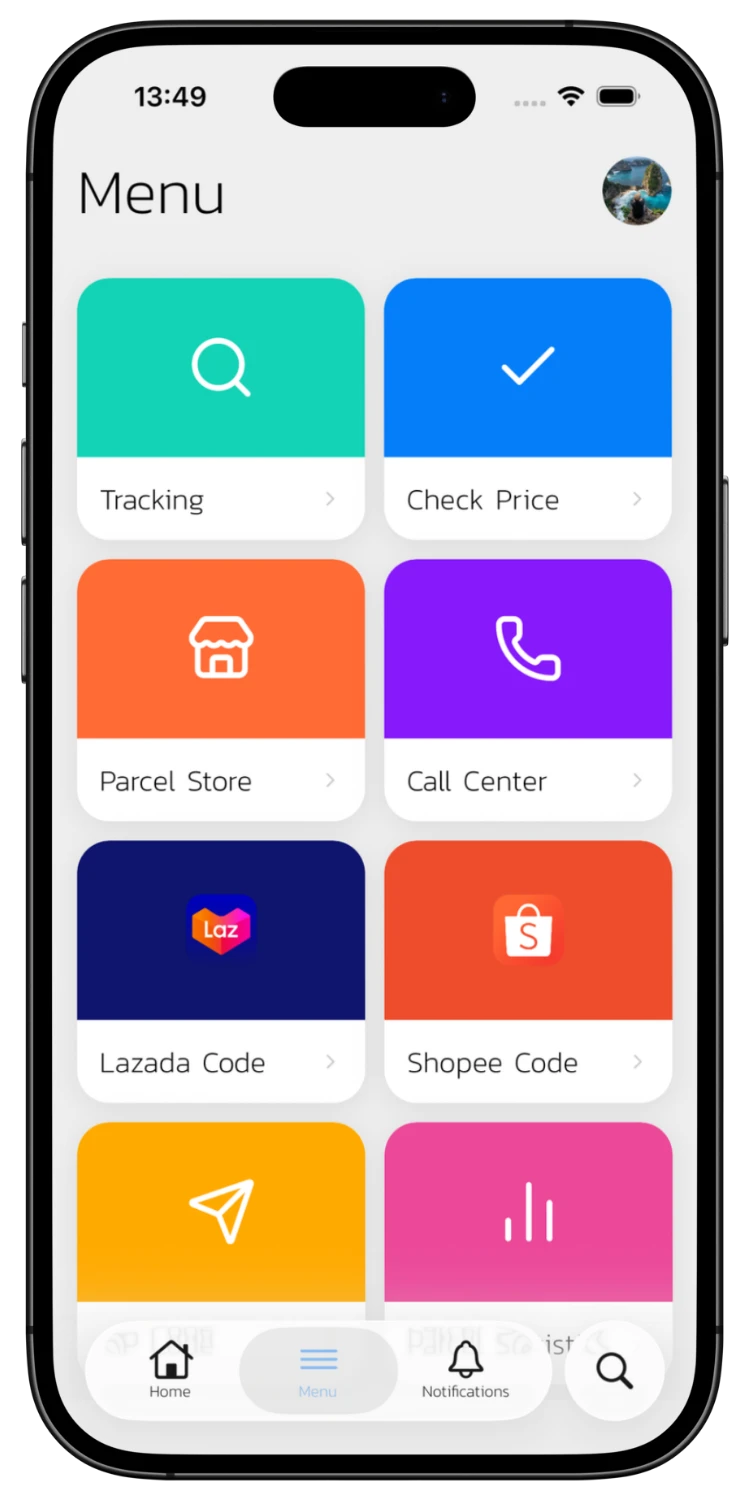
Open Menu & Select Tracking
Open the ETrackings app and tap "Tracking" from the main menu to go to the tracking page.
Take a photo of your receipt and let the system read the tracking number automatically
Open the ETrackings app and tap "Tracking" from the main menu to go to the tracking page.
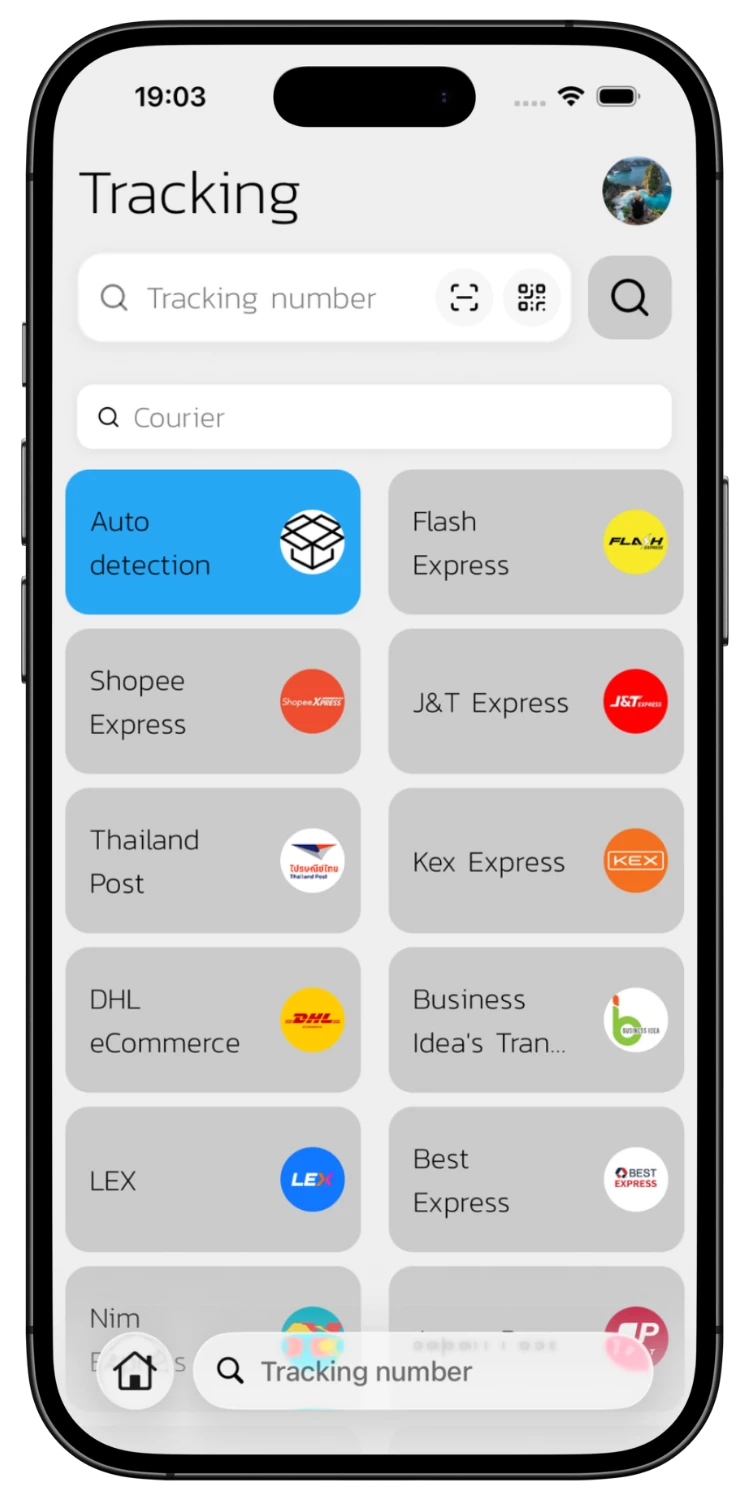
Choose the courier you want to search, such as Thailand Post, Flash Express, or J&T Express. You can also select "Auto Detection" to let the system identify it. Then tap the scan icon next to the search field.
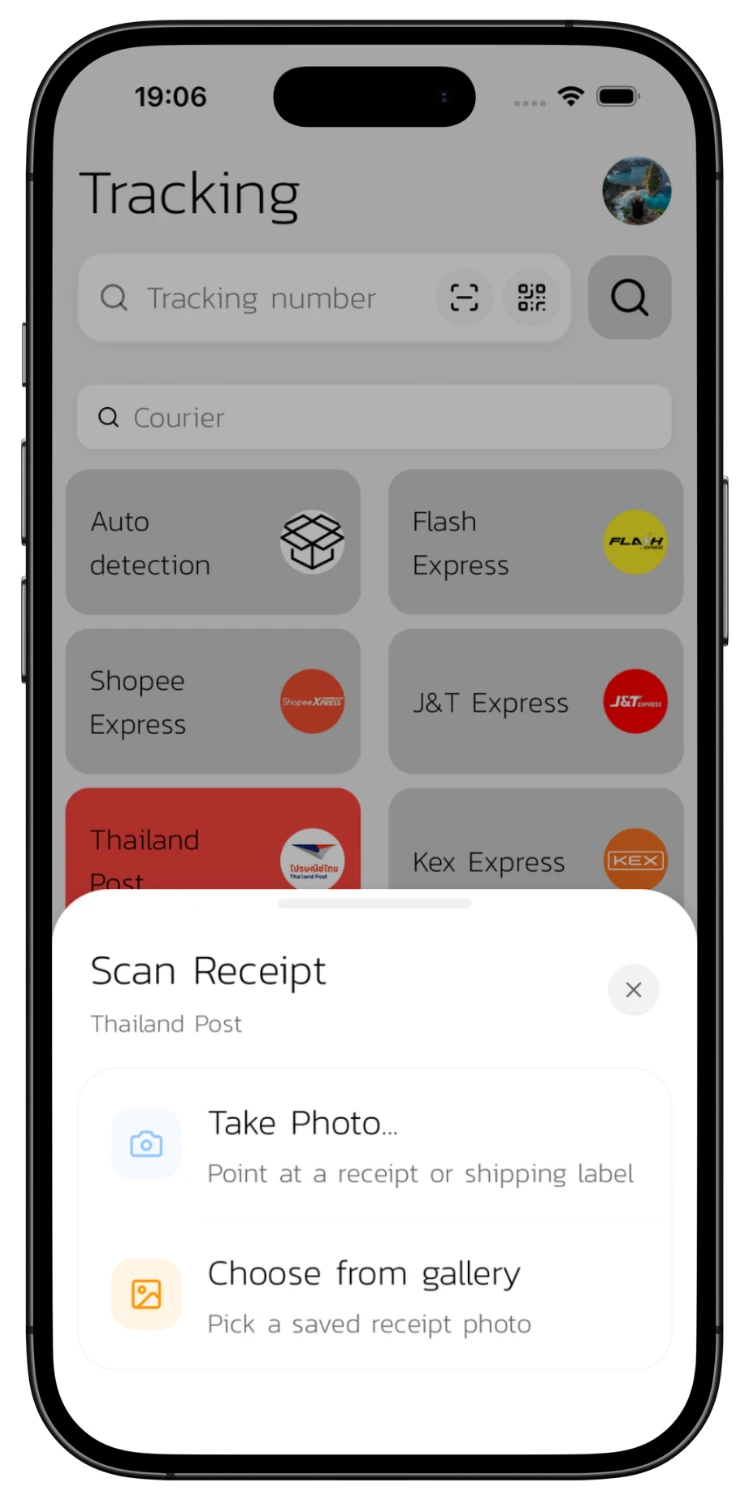
The Scan Receipt panel appears showing your selected courier. Tap "Take Photo" to photograph a receipt directly, or "Choose from gallery" to pick a saved photo.
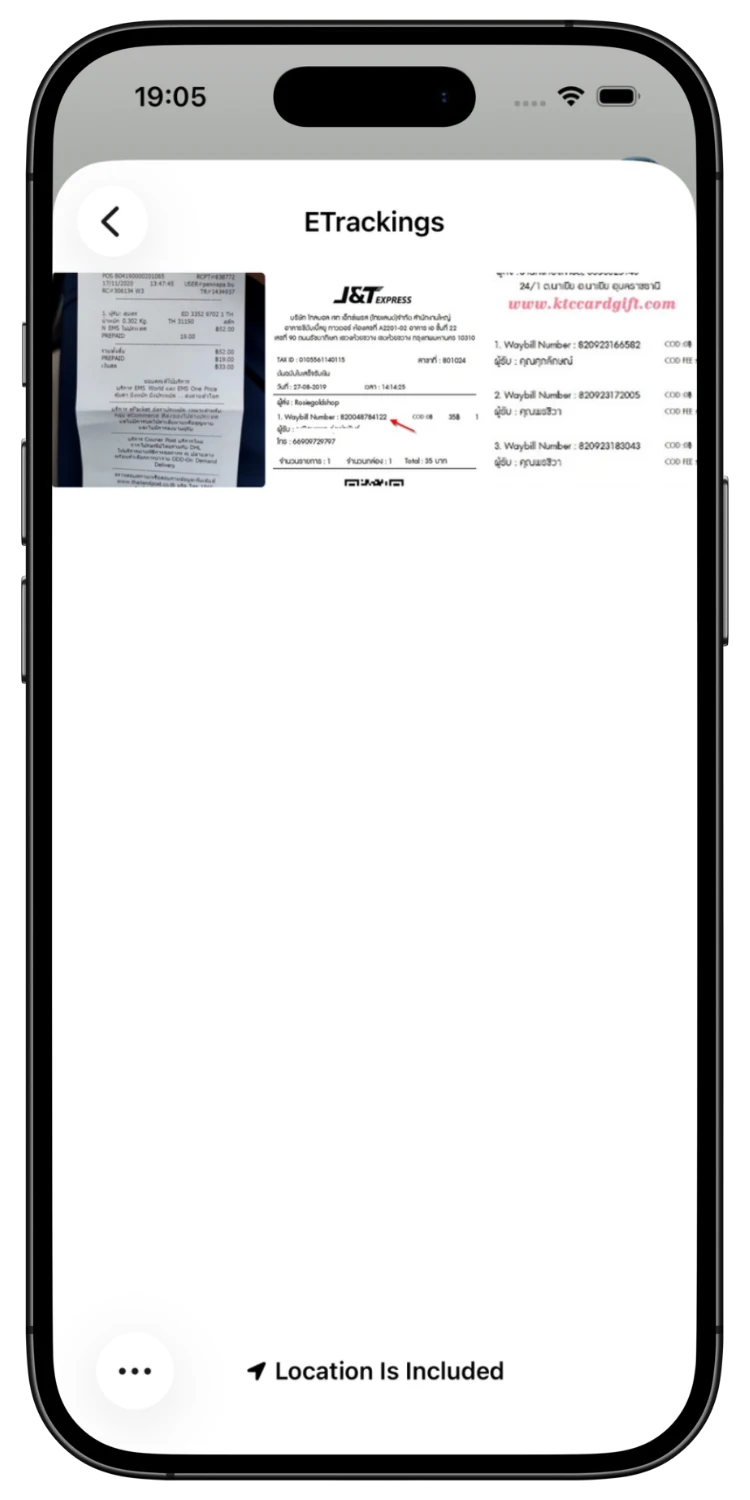
Take a photo of the receipt or any image containing tracking numbers. The system reads all tracking numbers from the image automatically.
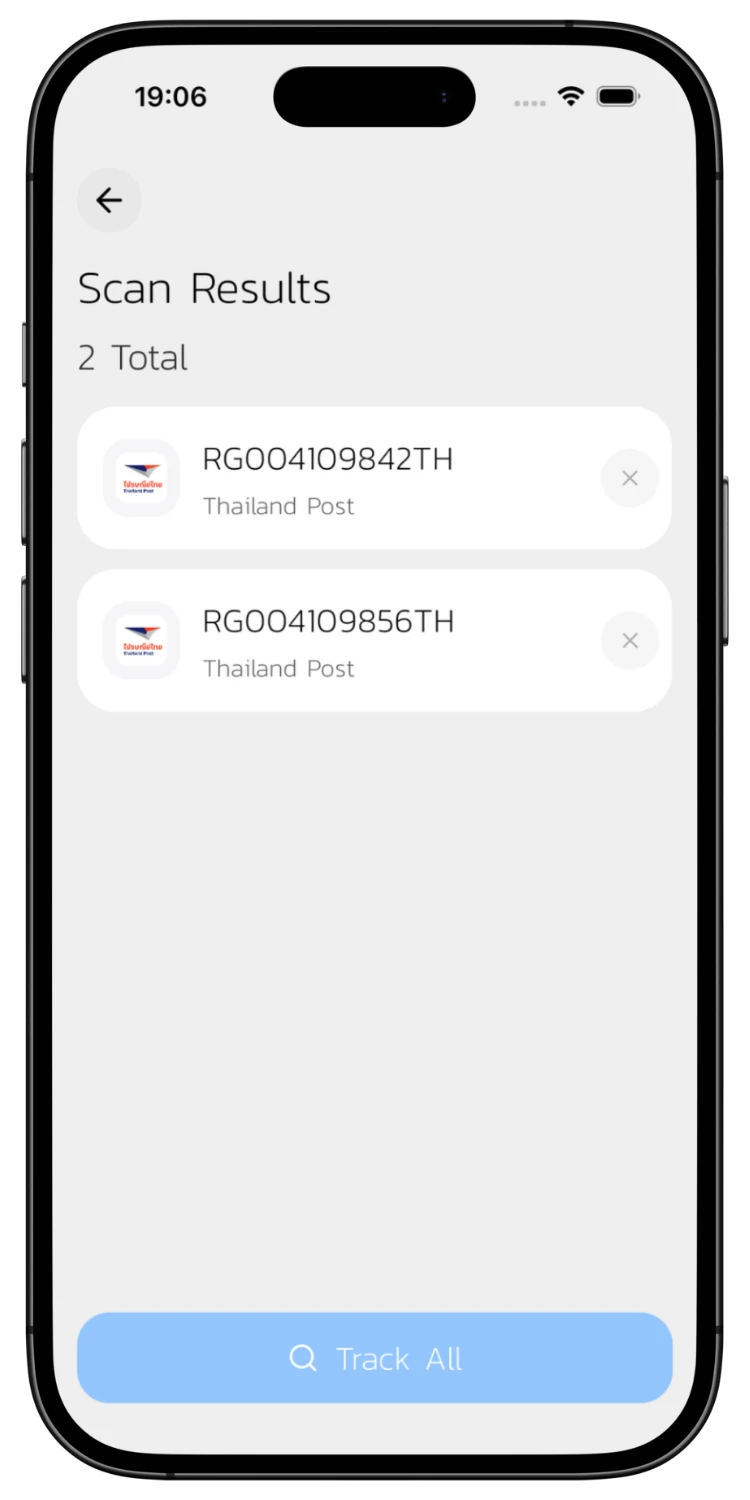
The system displays all detected tracking numbers with their courier names. Tap any number to view its details individually, or tap "Track All" to let the system look up every parcel automatically — no manual typing needed. Found parcels are saved to your search history for future status notifications.
We use cookies to improve performance. and good experience in using your website You can study the details at Privacy Policy and Terms and Conditions
You can choose cookie settings by on/off. Cookies of each type are available on request, except for essential cookies.