Set Up Parcel Notifications

Get notified every time your parcel status changes — unlimited notifications

193 views
Allow Notifications
01
Allow Notifications
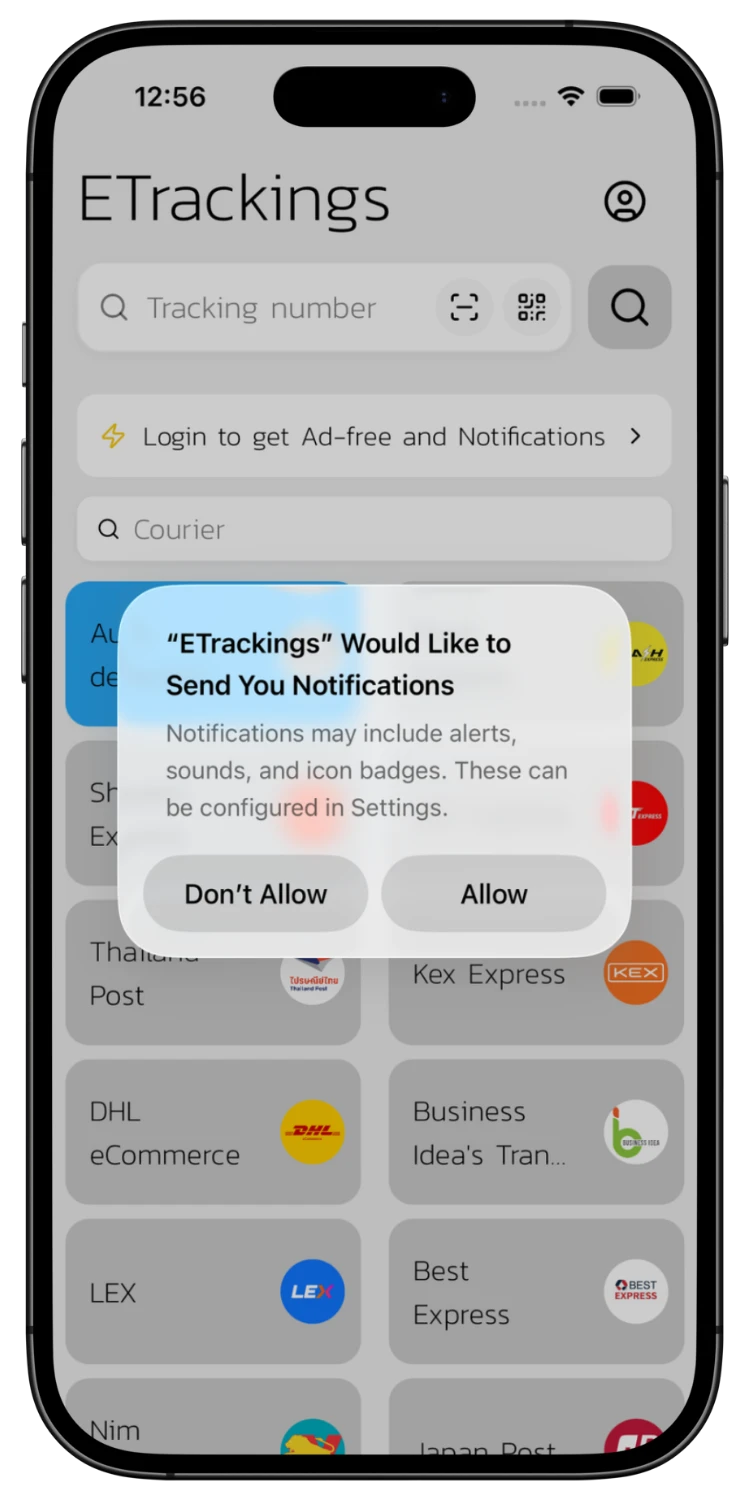
When you first open ETrackings, the system will ask for notification permission. Tap "Allow" to receive push notifications.
Enable Notification on a Parcel
02
Enable Notification on a Parcel
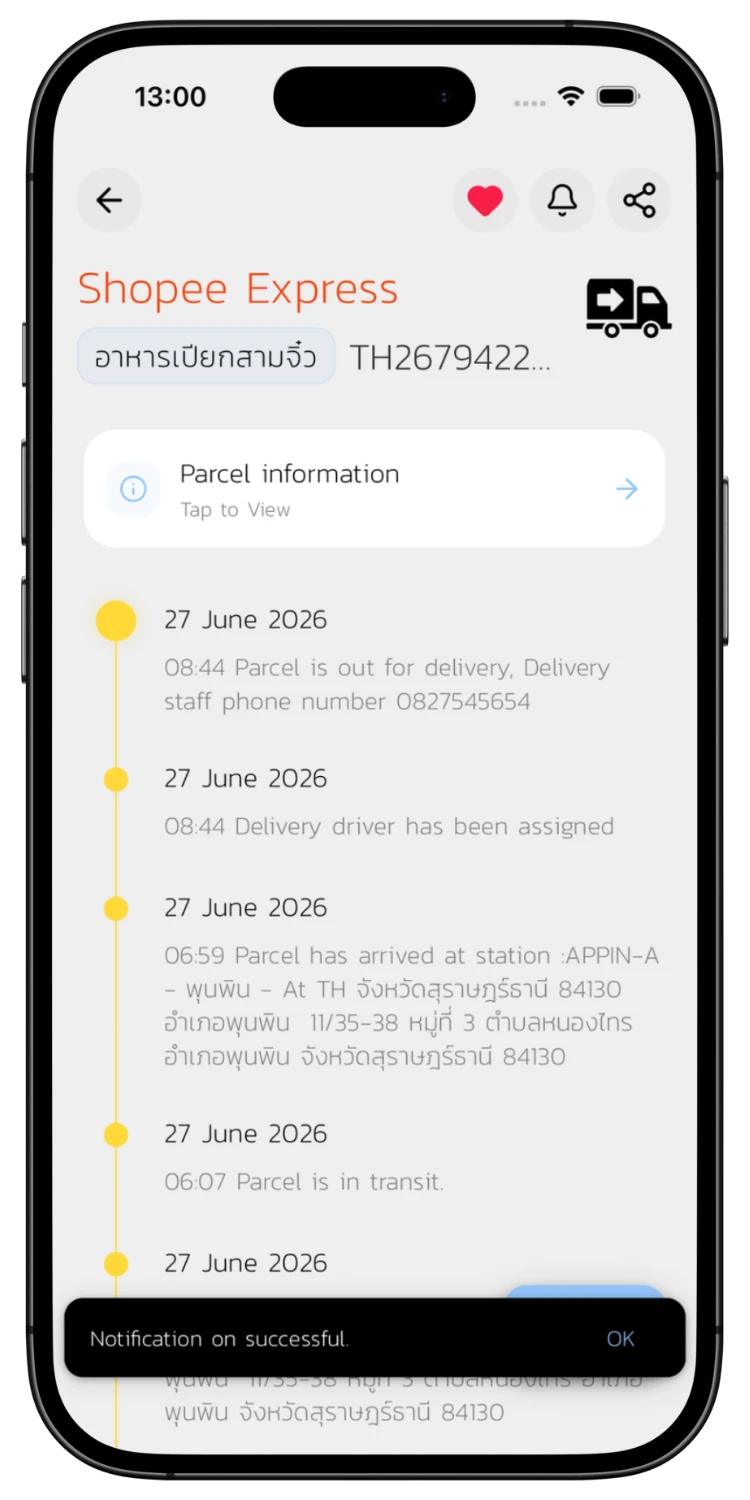
On the tracking results page, tap "Notification on successful" to enable alerts for that parcel. Unlimited notifications.
Choose Status Alerts per Parcel
03
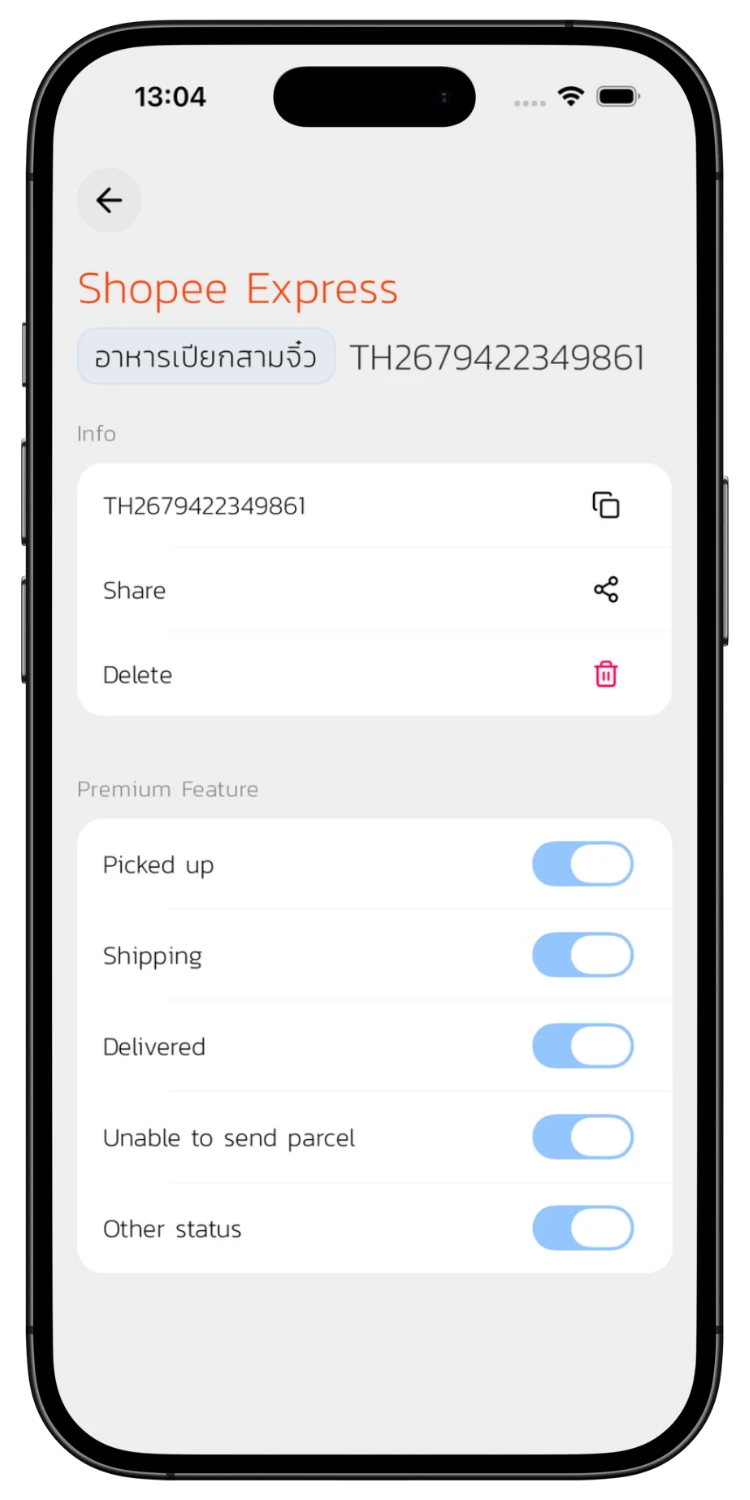
Choose Status Alerts per Parcel
View parcel info and toggle notifications for each status — picked up, shipping, delivered, unable to send, and more.
View Profile & Settings
04
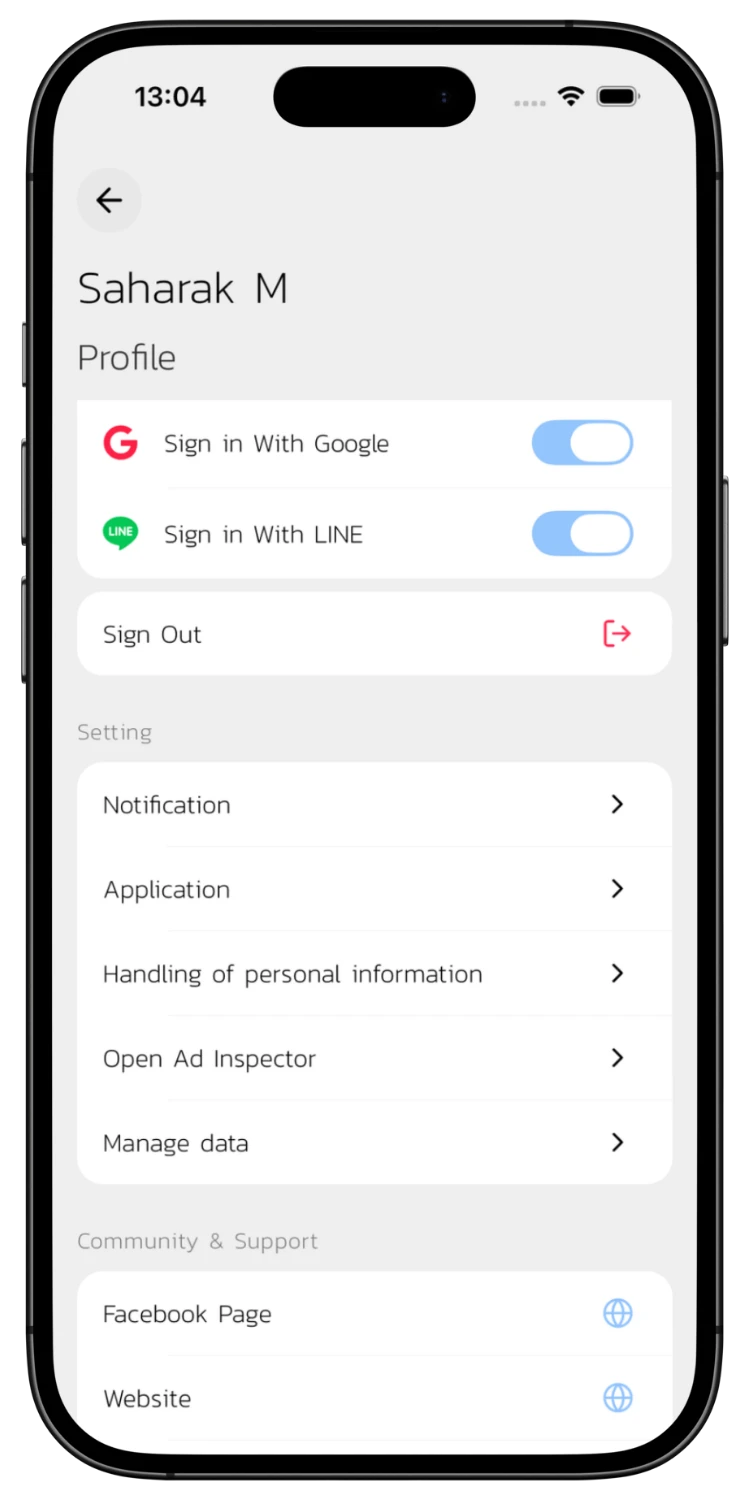
View Profile & Settings
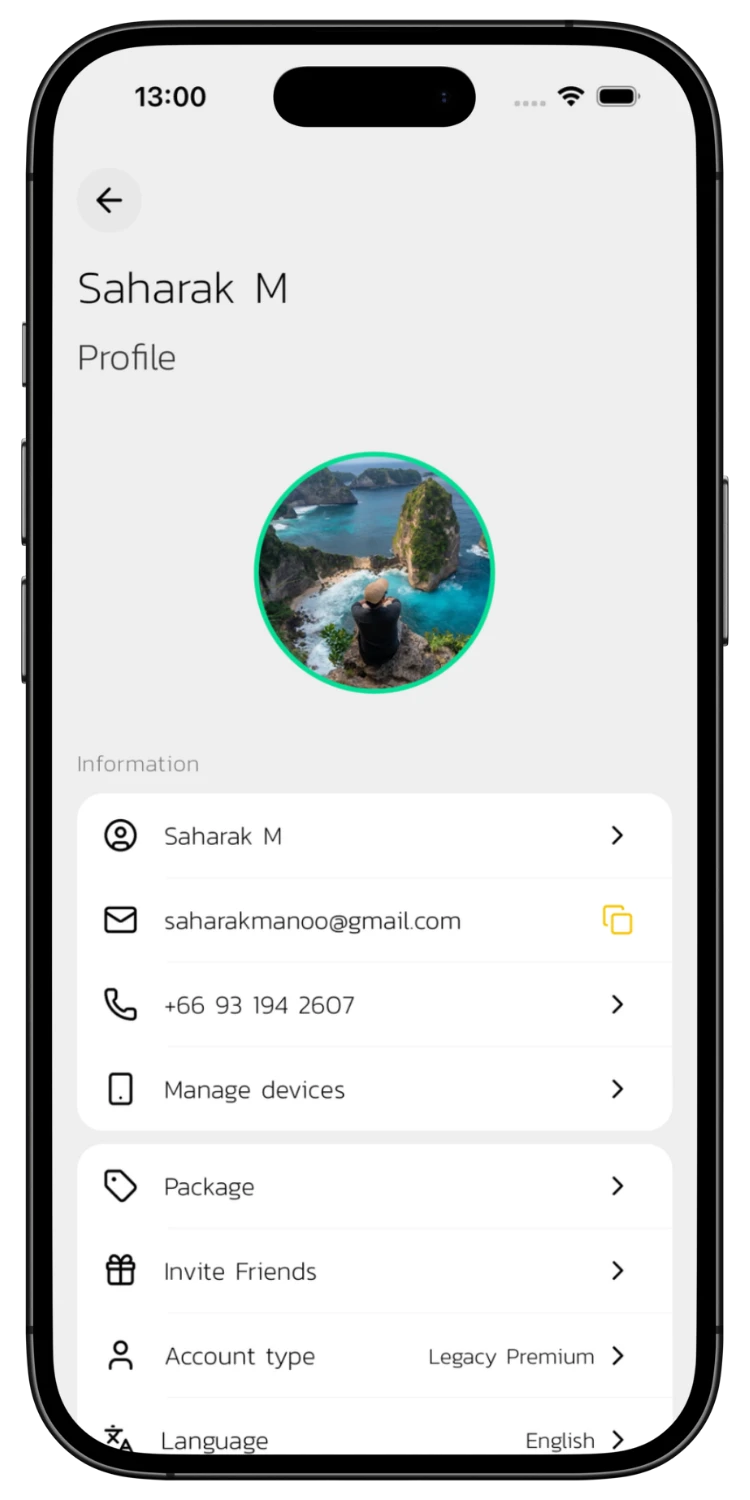
Sign in with Google, LINE, Apple, or Email, then go to your Profile page to manage your account and settings.
Open Notification Settings
05
Open Notification Settings
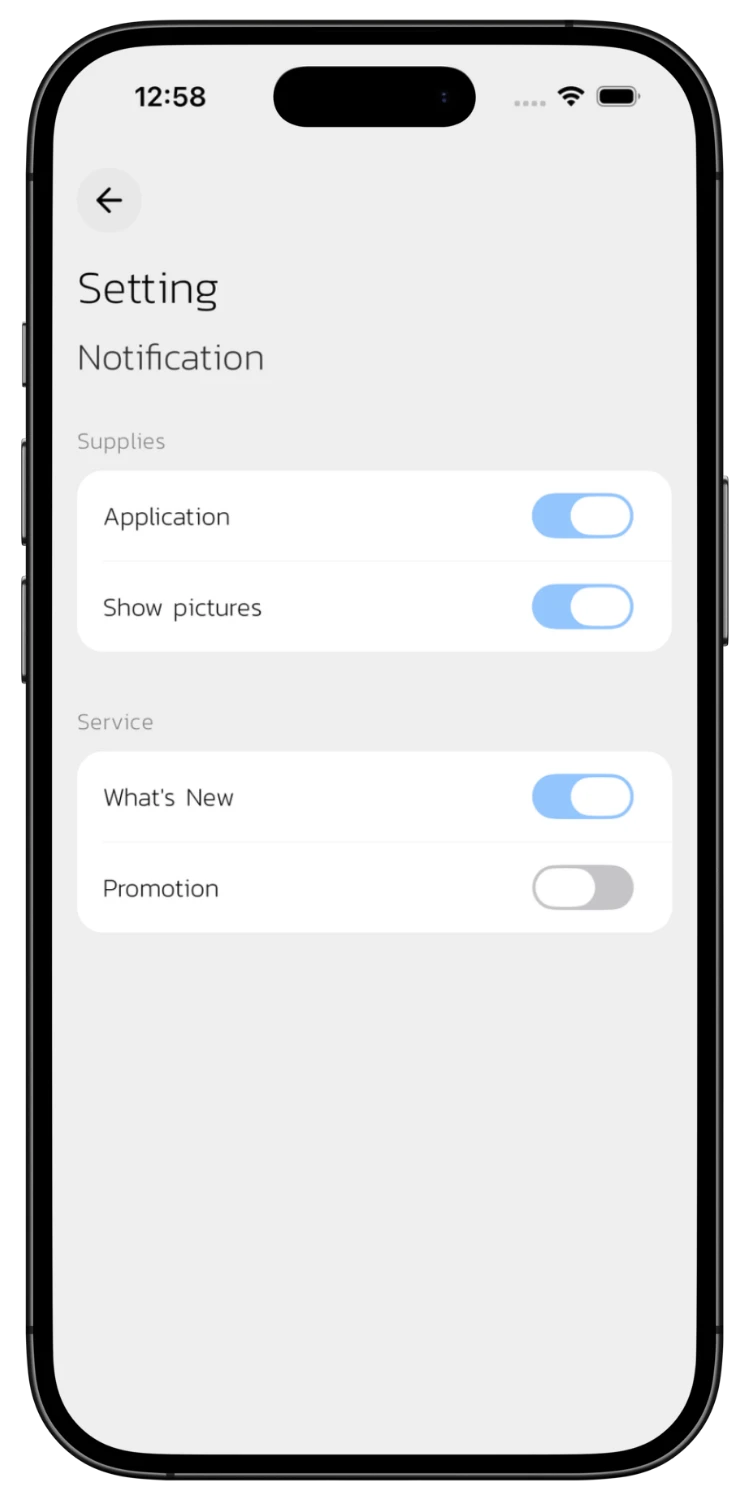
In the Profile page, scroll down to Setting and tap "Notification" to manage all notification preferences.
Configure General Notifications
06
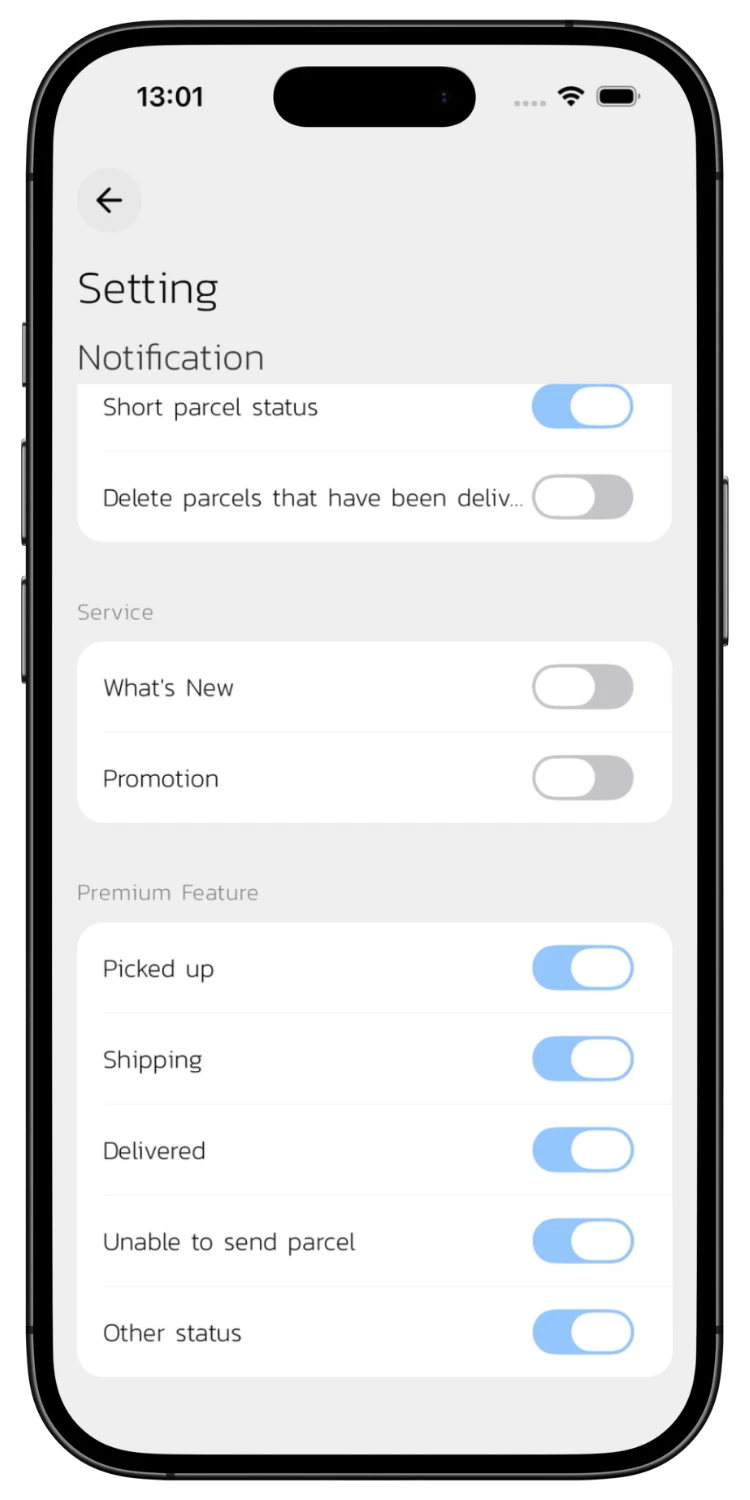
Configure General Notifications
Toggle app notifications, show pictures in notifications, and choose whether to receive news or promotions.
Configure Status Notifications
07
Configure Status Notifications
Premium users can toggle each status individually — e.g., enable only "Delivered" and disable all others. You can also turn off "Short parcel status" to see the full courier message in notifications (e.g., "Flash is delivering your parcel to..." instead of just "Shipping"), so you get all the details without opening the app.

Download the App for a Better Experience!

Track your parcels easier with many special features

Consent to Personal Data

We use cookies to improve performance. and good experience in using your website You can study the details at Privacy Policy and Terms and Conditions

Privacy Preferences

You can choose cookie settings by on/off. Cookies of each type are available on request, except for essential cookies.

Necessary
Required for core functionality
Always On
Analytics
Help us improve our service
Always On